Best Daily Planner App: 7 Picks for 2026
Compare the 7 best daily planner app picks for 2026—features, pricing, privacy and screenshots—to choose a workflow that fits your day.
Most planner shoppers aren't planning at all. In a survey of people shopping for a daily planner, 64% weren't using one, and only 10.3% enjoyed planning their day. Buying more features isn't the right starting point. Choosing a planning habit you'll repeat is.
The short answer: the best daily planner app matches how you work: a firm morning prompt, a visual timeline, a guided shutdown ritual, fast task capture, or an Apple-native Today list. Choose accountability prompts when you forget your priorities, a timeline when you overbook, and task-first capture when ideas and commitments keep slipping away.
For value, start with a free edition before paying for calendar layouts, integrations, or automation. A subscription makes sense when you'll use its planning process consistently. A one-time purchase suits you better when you want a stable daily tool without another recurring bill.
The screenshots below give you a visual starting point, not proof of usability. Compare the working surface you'll open tomorrow, then test platform support, reminder controls, and data handling against your own workflow.
1. Papa
Accountability prompts suit people who know what to do and still don't do it. Papa is the pick for that habit, and for independent business owners on a Mac. It drops out of the notch the first time you open your Mac each morning, asks for up to three tasks, and comes back in the evening to check what got done.
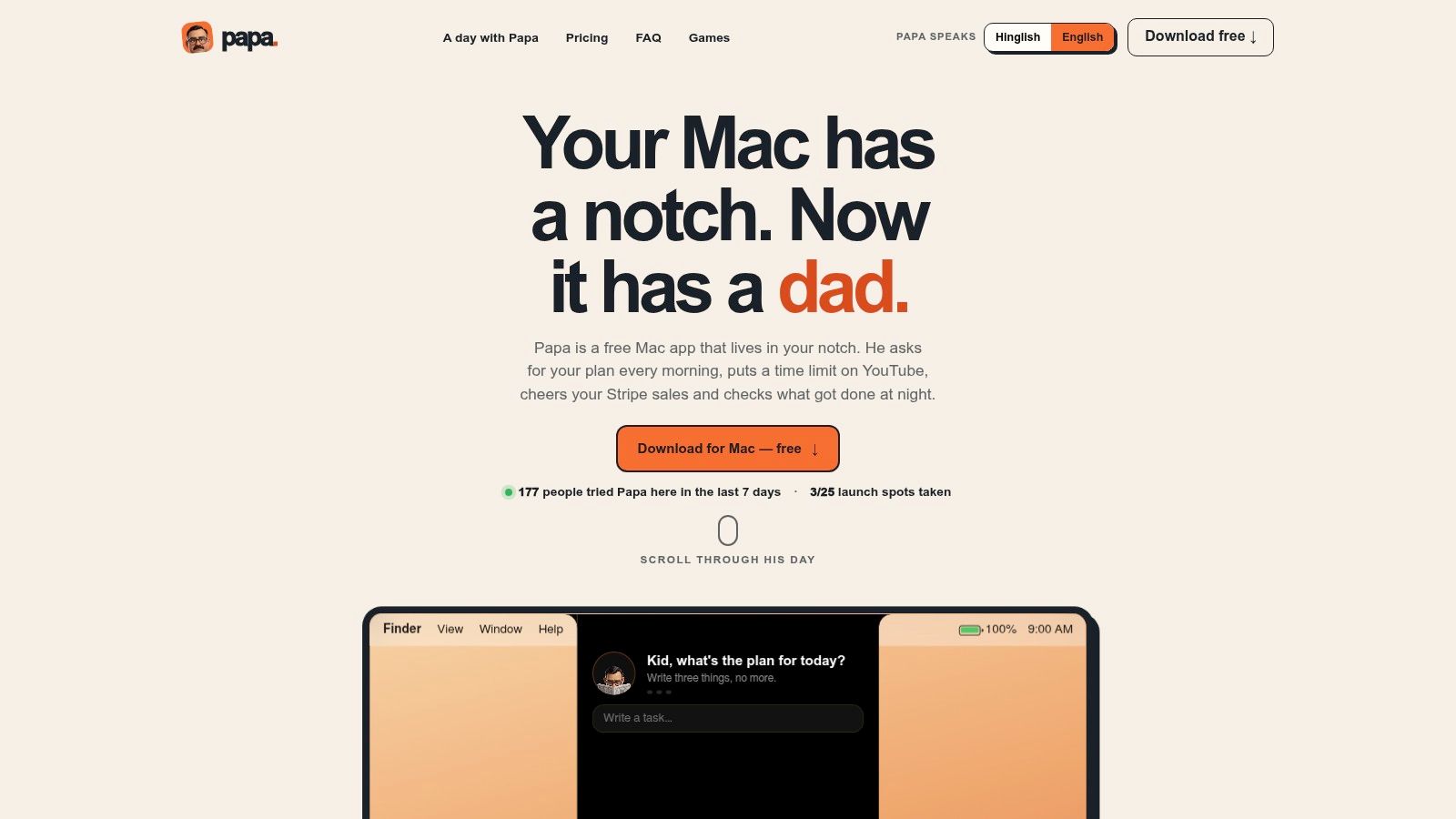
Between those two check-ins you can give any distracting site a daily time limit in Safari or Chrome; go over it and Papa brings up the Miller kid next door. He lives in the notch, or a small black pill at the top centre on Macs and displays without one, and his speech bubble floats over full-screen apps. He never speaks out loud: everything is a silent bubble in English or Hinglish, and you can switch any time.
What You Get for the Price
Free costs $0 forever and covers the full habit loop: the three-task morning plan, the evening check, one time-wasting site, battery and charger reminders, the notch dashboard, quiet hours, a weekly day off, and a daily cap on how often Papa speaks.
Pro is a one-time $9.99, with a $4.99 launch price for the first 25 buyers using code FIRST25 for 50% off. It adds unlimited time-wasting sites, focus mute, all nine streaks, approval levels, the dollar-bill, cookie and proud-speech rewards, and sales reactions from Stripe and Dodo Payments showing today's revenue and MRR. Three quick games, including sneaking to the fridge at 2 AM and dodging the belt, come with shareable scores.
- Strong fit: you want a visible prompt to pick priorities each morning and answer for them at night, with lightweight sales tracking alongside.
- Privacy boundary: for site limits, Papa sees only which site is open and for how long, never what's on the page. Your Stripe or Dodo Payments key is read-only, stays in the Mac's Keychain, and nothing goes to Papa's servers.
- Platform limit: you need a Mac on macOS 14 Sonoma or later. There is no Windows edition.
- Personality trade-off: the stern-father persona won't suit everyone. The Pro belt, which cracks your screen at most once on a zero-sale evening, can be turned off completely, and quiet hours plus the daily cap keep him quiet the rest of the time.
Start on the free plan with one site you lose time to. Our planning and accountability articles cover related ground, but the test is whether you keep answering the evening check after the novelty wears off.
2. Structured
Choose Structured when you need to see your day, not just list it. Its visual timeline puts tasks and appointments into a daily sequence, making it a better fit for schedule awareness than an open-ended task inbox.
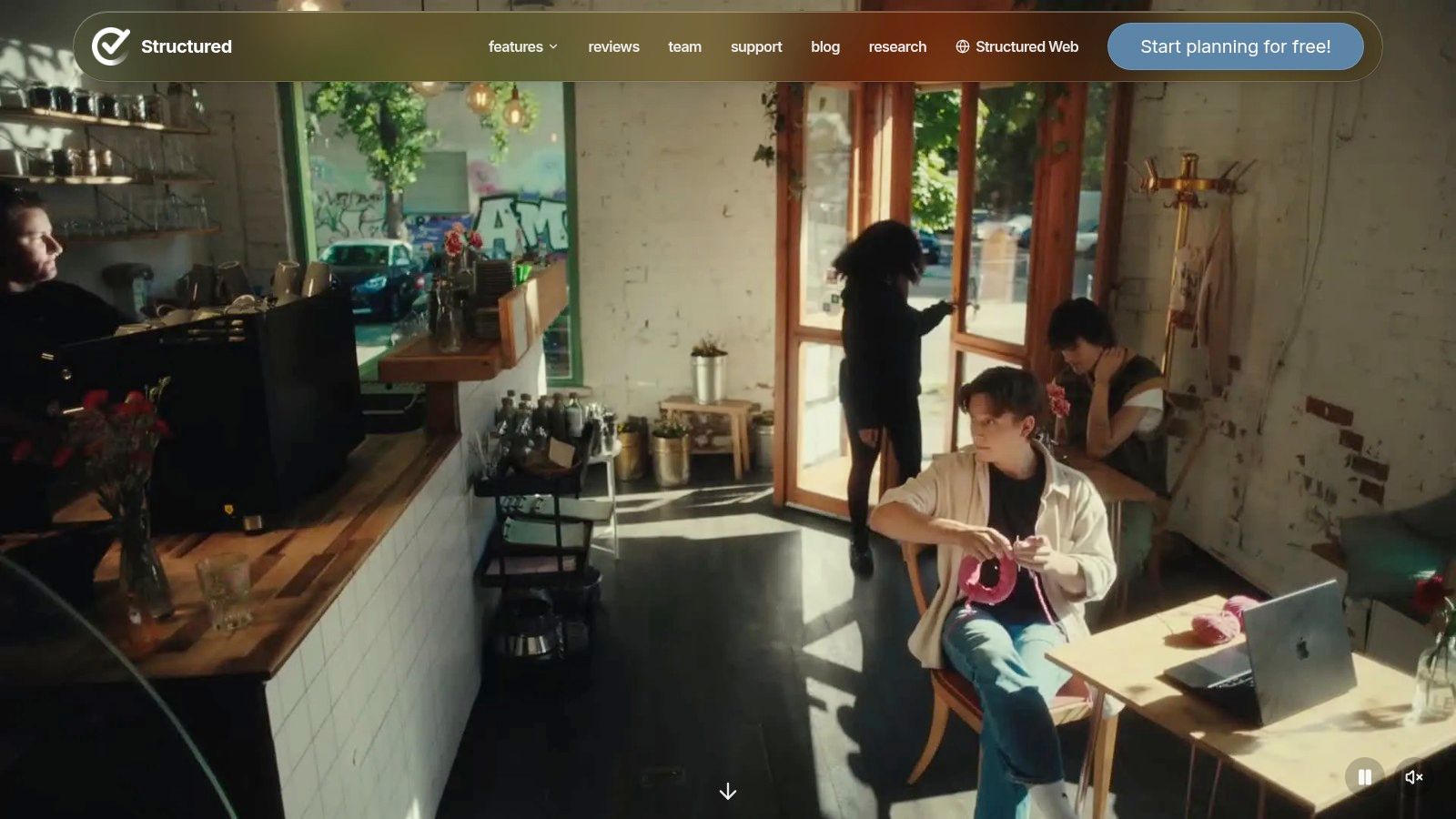
The practical question is whether you prefer giving work a place in time. A builder balancing customer calls, support, and development can use the timeline to decide where focused work belongs rather than assuming everything will fit.
Structured's free edition and Pro options let you start with basic planning before committing. Pro adds calendar imports, recurring tasks, reminders, AI-assisted planning, and replanning missed tasks. A lifetime purchase option is available, alongside paid subscription options.
Best Value for Visual Planners
Start manually. Add your fixed commitments, place meaningful work around them, and leave visible space for support requests or overruns. Upgrade when calendar imports or recurring tasks remove work you'd otherwise repeat.
- What works: The timeline makes a crowded day easier to inspect, and basic planning is free.
- What costs extra: Useful scheduling and automation features require Pro.
- What to accept: Timeline-first planning can feel restrictive when creative work or debugging refuses to follow an estimate.
Structured supports Apple platforms, including Mac, plus Android and web, with synchronization across supported devices. Confirm that the particular features you need are supported on the devices you'll use.
A timeline is useful when you're willing to move work, not just squeeze more work into the gaps.
Choose this over a plain list when time visibility is the problem. It doesn't list notch-based accountability prompts or website-use limits. For a separate editorial reference, the publisher's team page identifies the team behind the planning content.
3. Akiflow
A shutdown routine matters when you finish work without deciding what happens next. Akiflow is the pick for a desktop planning ritual that connects morning priorities with an intentional end-of-day review.
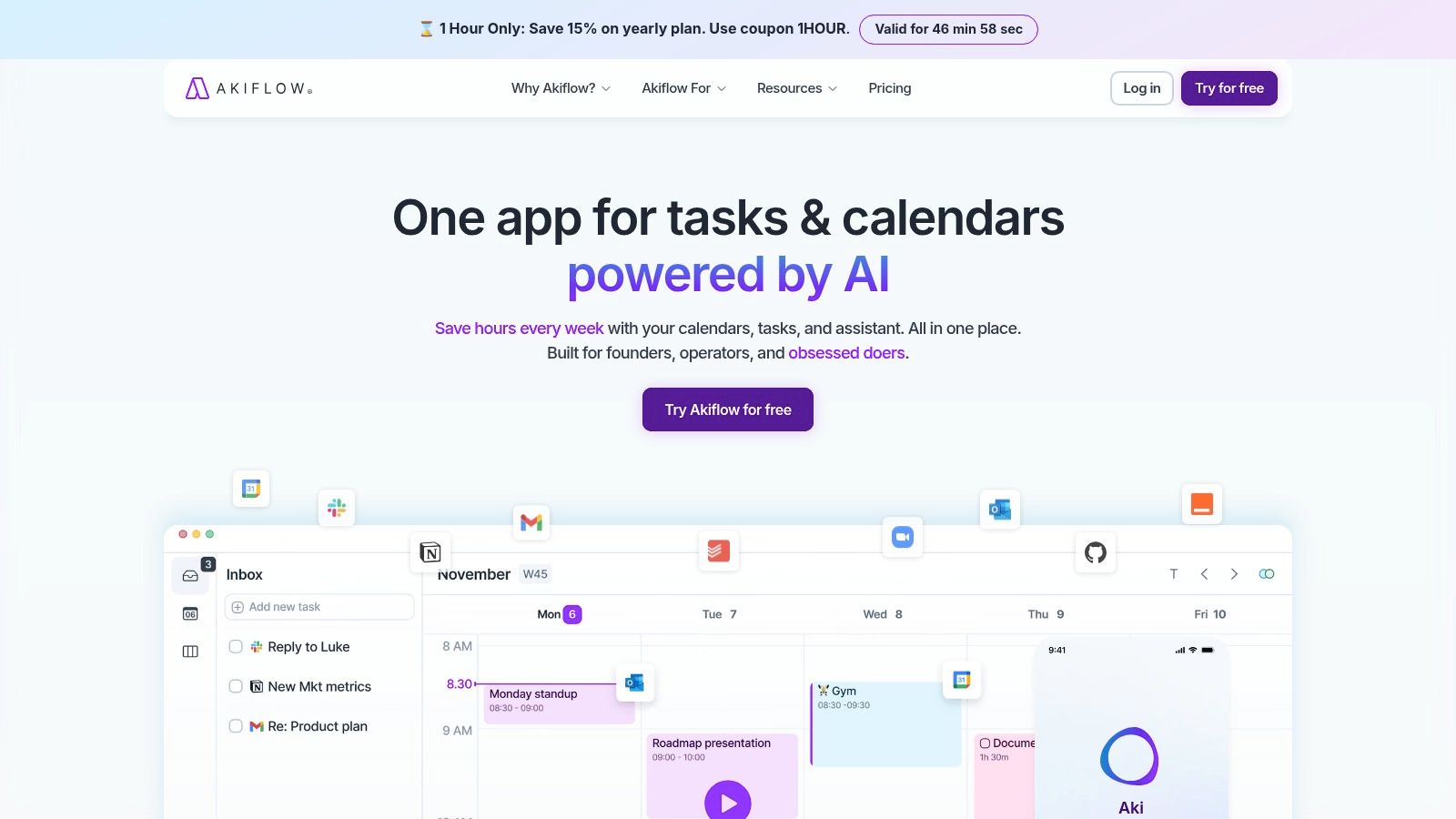
Akiflow's task and calendar workspace combines quick capture, integrations, time-blocking, and guided daily and weekly planning. You can review the previous day, choose priorities, defer unfinished work, and set a shutdown time. Its shutdown routine supports reviewing completed tasks and reflecting on the day.
That makes it a stronger choice than a simple list when your problem is review discipline, not remembering to capture tasks. The Mac desktop app also suits people who want planning to happen at their main workstation.
Pay for the Routine, Not the Possibilities
There's no permanent free plan, only a time-limited trial. The subscription costs more than simpler task planners, so evaluate the routines before spending time connecting every available work tool.
Try a realistic day with development, a customer request, and unfinished work from yesterday. Use the morning ritual to choose what matters, then deliberately defer what won't fit. At shutdown, check whether the review helps you stop working with a clear next step.
The advantages are guided accountability, combined task and calendar scheduling, and a desktop-oriented workflow. The drawback is paying for a broader workspace when you might only need a short daily list.
Buying rule: If you skip the planning and shutdown routines during the trial, don't subscribe for them.
Choose Akiflow over Structured when you need a repeatable review process more than a prominent timeline. Choose a simpler capture tool when you already review your day reliably and don't want another guided process.
4. Sunsama
Sunsama is the better choice when your daily list exceeds your available time. Its guided planning flow asks you to assemble the day deliberately, inspect the workload, and decide what should wait.
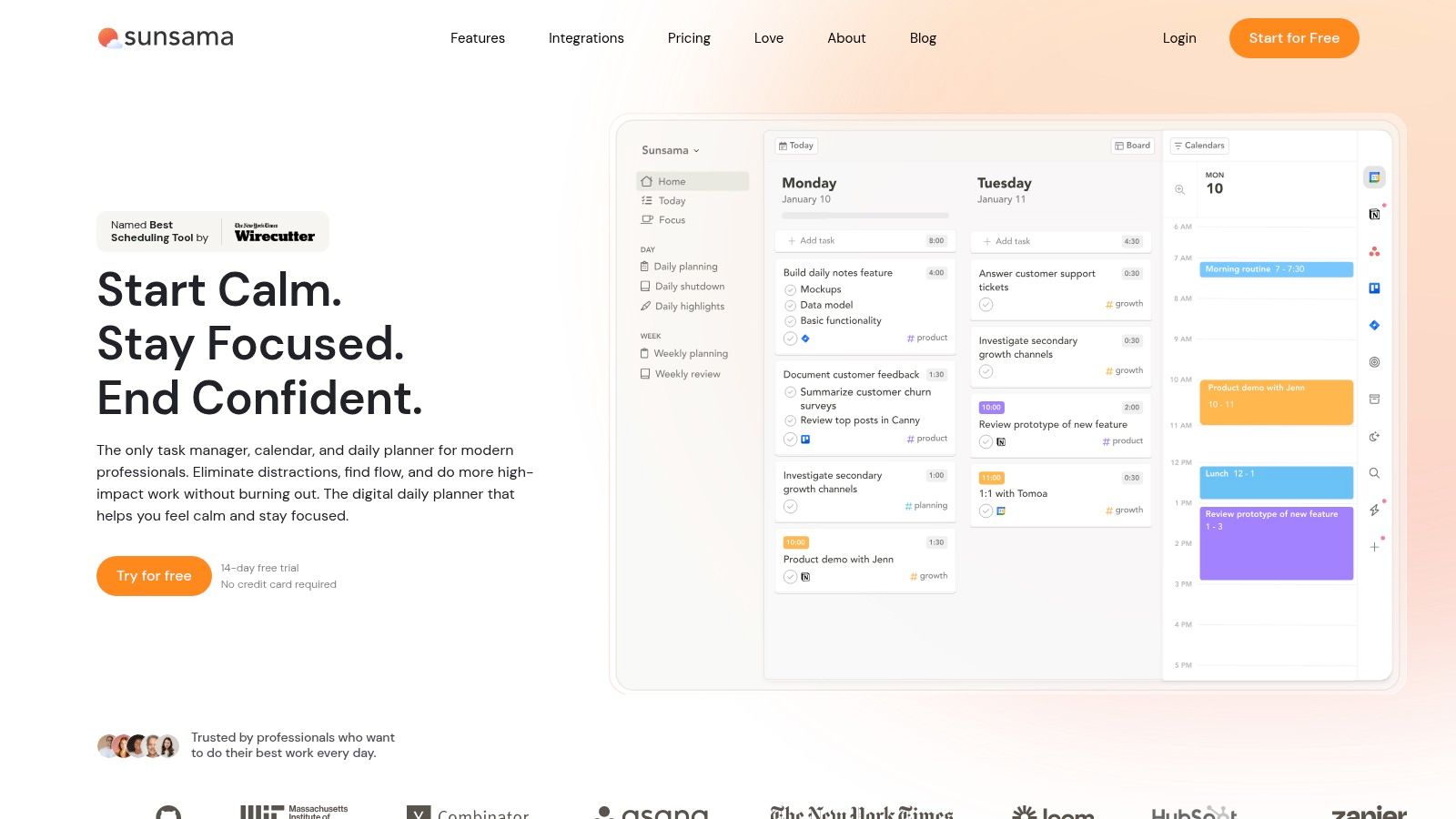
You can bring meetings and work from connected calendars and tools into the planning process. Timeboxing works with Google, Outlook, or iCloud calendars, or Sunsama's own calendar, while workload projections help you identify an overfull day.
For an independent business owner, that's useful when support, sales work, and product development compete for the same afternoon. The value comes from deciding what you won't attempt, not displaying everything together.
Test Workload Decisions During the Trial
Sunsama offers a 14-day trial without a credit card. Its ongoing subscription is a meaningful personal-planning expense, so use that trial to test whether the guided process changes your choices.
- Best reason to pay: You consistently overcommit and want tasks, meetings, time blocks, reflection, and shutdown in a connected planning flow.
- Reason to skip it: You want to write a quick list and start working immediately.
- Integration trade-off: Bringing work together is valuable when you use several tools, but less compelling when your work already lives in a single task app or calendar.
Start by adding fixed meetings and your most important work. Inspect the projected workload before accepting more tasks, then move lower-priority work out of today instead of treating every unfinished item as urgent.
Pick Sunsama over Akiflow for deliberate workload planning. Pick Akiflow when the main attraction is a desktop task-and-calendar workspace with explicit planning and shutdown rituals. Neither subscription is good value if you repeatedly bypass the process you're paying for.
5. Todoist
Todoist is the practical starting point when capture is your main problem. Choose it when tasks arrive during calls, coding, errands, and email, and you need a flexible place to put them before deciding when to act.
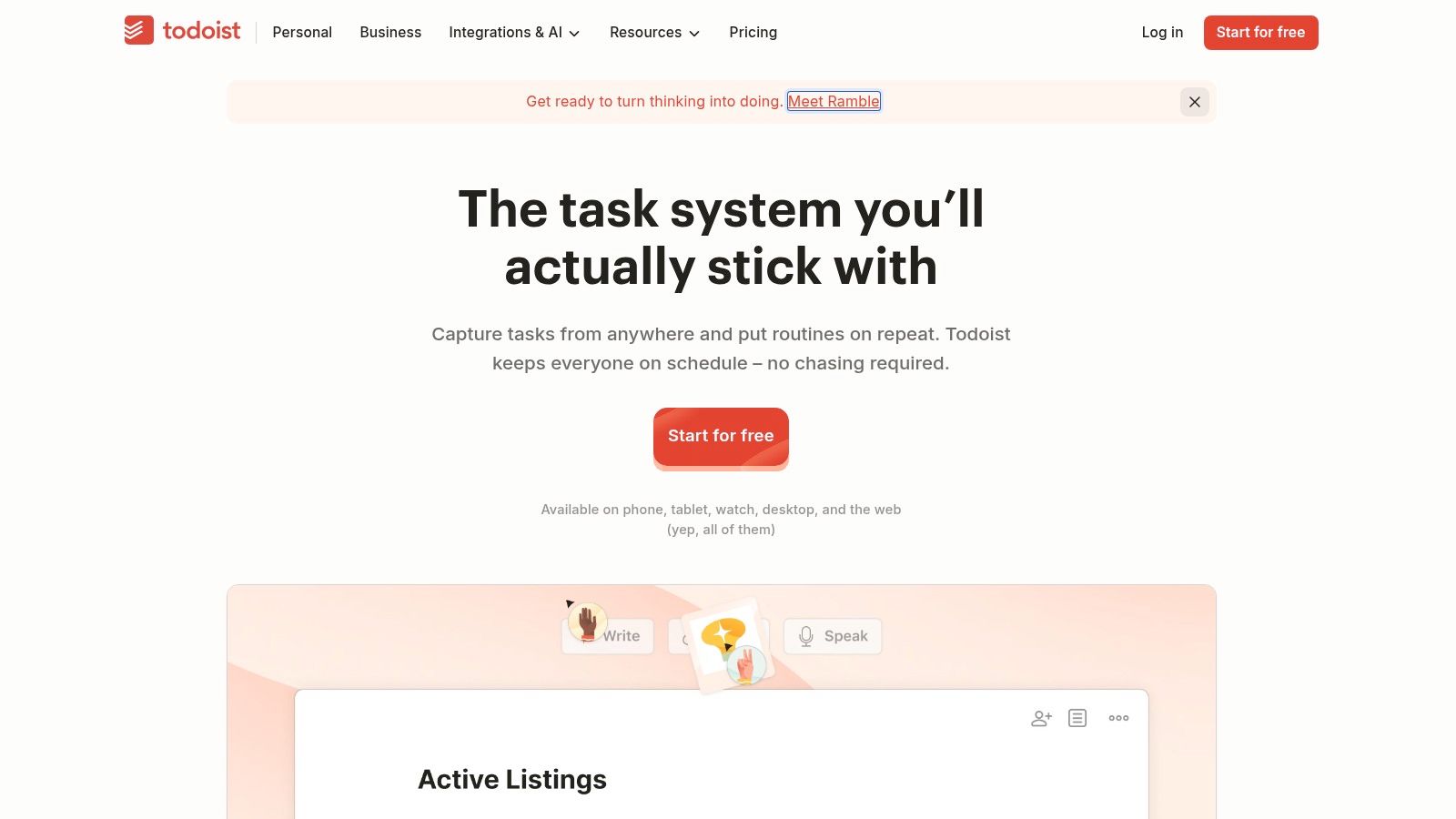
Todoist's cross-platform task manager supports quick entry, natural-language due dates, recurring tasks, reminders, and shared projects. Today and Upcoming help you review what needs attention without turning every task into a calendar block.
The free plan is the sensible starting point for personal tasks and collaborative projects. Pro adds calendar layouts and task durations, which matter when you want to move from collecting tasks to allocating time.
Keep Capture Separate From Commitment
An inbox isn't a daily plan. Capture freely, but select today's work deliberately instead of assigning everything an immediate due date.
A priority-planning guide recommends selecting 3–5 meaningful tasks, estimating their time, and identifying the most important task. Apply that principle to Today rather than letting it become a second backlog.
- Strength: A task-first workflow can stay straightforward as your projects grow.
- Limitation: Calendar-based daily planning requires Pro.
- Missing habit: You won't get the same built-in guided review ritual as Akiflow or Sunsama.
For solo business work, write actions you can finish, such as fixing a checkout error or following up on a proposal. Keep revenue observation separate from task completion. The publisher's sales-tracking overview provides related context for that distinction.
Choose Todoist over Structured when flexible capture matters more than a visual timeline. Before upgrading, prove that you can review Today consistently. A paid calendar layout won't make an unreviewed inbox into a realistic day.
6. TickTick
Tasks, habits, and a focus timer don't have to live in separate apps. TickTick is the all-in-one pick for people who want those tools alongside daily planning.
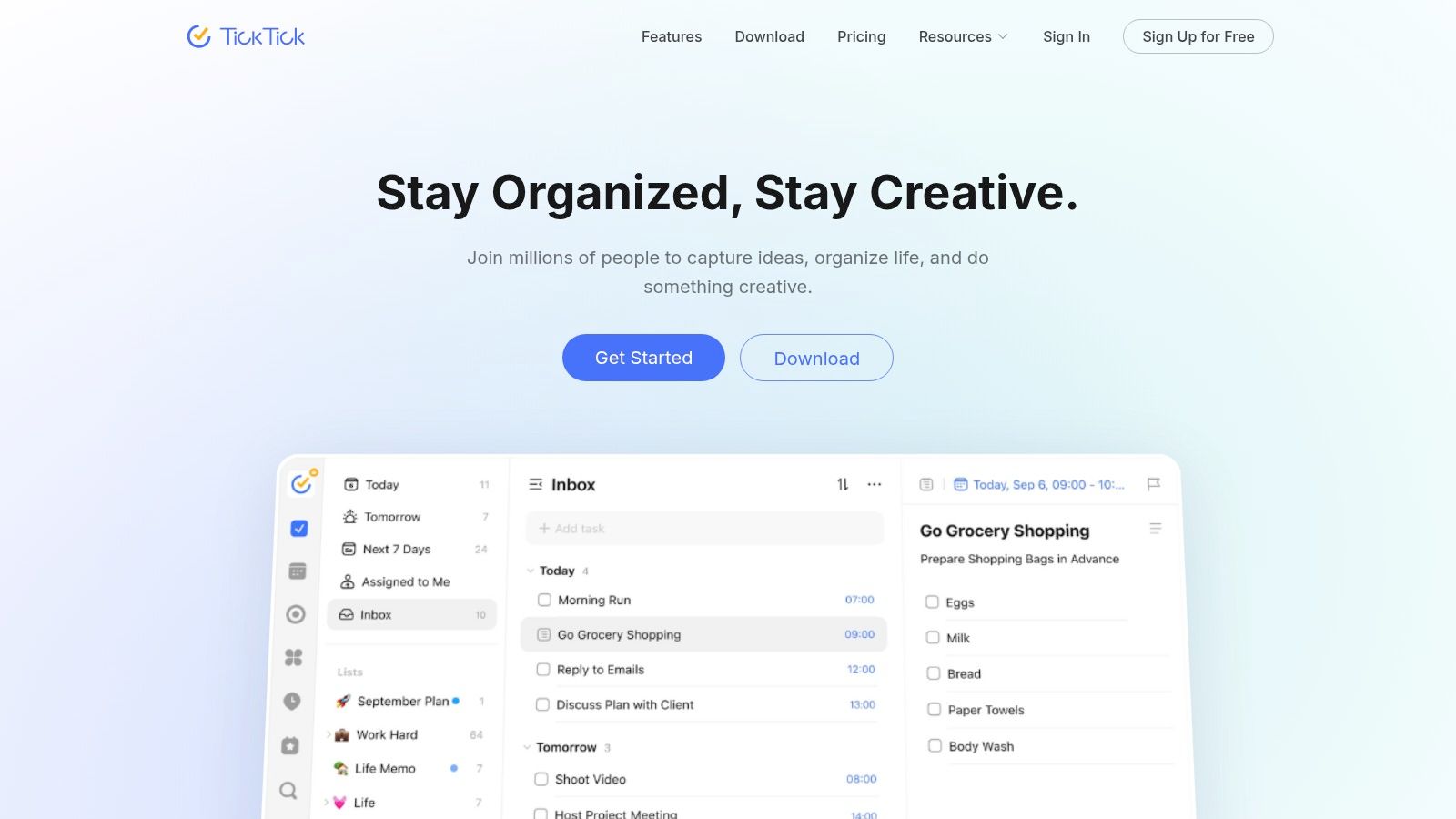
TickTick combines planning and focus tools, including recurring tasks, multiple reminders, calendar views, habit tracking, a Pomodoro timer, and an Eisenhower Matrix. Its daily reminder supports reviewing tasks and planning ahead. Mac users also get quick capture and menu-bar access.
Start with the free tier. Premium has a published annual price, and several calendar features require it. Buy for the capabilities you'll use together, not because the bundle contains more tools.
Add Tools Only When They Solve a Problem
Begin with tasks and the daily planning reminder. Add the Pomodoro timer if starting focused work is difficult, or habit tracking if you want to review a repeated behaviour separately from project tasks.
The distinction matters: habit tracking and task scheduling remain separate tools, not a continuous morning-to-evening accountability flow. You still need to decide what to review and when.
- Good value: You want task planning, habits, and focus sessions in the same application.
- Main compromise: The breadth can feel busy when you only need a short list.
- Upgrade trigger: Premium calendar capabilities become part of your regular planning, rather than an occasional experiment.
Keep reminders selective. A study in the Journal of Occupational Health concluded that reducing notification-caused interruptions benefits performance and reduces strain. More reminders aren't automatically better accountability.
Choose TickTick over Todoist for the built-in habit and focus tools. Choose Todoist when you want task capture to remain the centre of the experience, without maintaining additional planning surfaces.
7. Things 3
Things 3 is the pick for Apple users who want clear daily lists without a subscription. Its organising model separates work for today from work for later, without requiring you to schedule every task.
Things 3 organises tasks around Today, Upcoming, Anytime, and Someday. Projects, tags, checklists, and repeating tasks support the work behind those daily lists.
Calendar events can appear in Today, and the optional This Evening section separates later-day commitments from immediate priorities. That's useful when you want a clear working list without mixing tonight's personal tasks into the next action you'll take at your desk.
Understand the Purchase and Calendar Boundaries
The pricing model is one-time purchases rather than a subscription, but Mac, iPhone, and iPad apps require separate purchases. Things Cloud synchronization is included at no extra charge between purchased apps.
Don't confuse seeing calendar events with scheduling tasks onto your calendar. The integration displays Apple Calendar events, but doesn't send Things tasks to the calendar. Choose a time-blocking planner instead if that direction of integration is essential.
Keep Today for work you intend to attempt. Use Anytime and Someday for possibilities you haven't committed to doing today.
Its strengths are a clean daily view, focused Apple-platform organisation, and no recurring subscription. Its limits are the separate device purchases and an Apple-centred setup that won't suit a mixed-platform workflow.
For a useful trial workflow, collect project actions first, then promote only the relevant work into Today. Use This Evening for later-day tasks, not as overflow for an overloaded workday.
Choose Things 3 over TickTick when list clarity matters more than bundled focus tools. Choose it over a timeline planner when you want to decide what matters today without estimating a start time for everything.
Top 7 Daily Planner Apps Compared
| App | 🔄 Workflow complexity | ⚡ Resources and cost | 📊 Expected outcome | ⭐ Ideal use case | 💡 Key advantage |
|---|---|---|---|---|---|
| Papa | Lightweight priorities, check-ins, and site limits | Mac with macOS 14+; free tier and one-time Pro upgrade | More daily accountability and awareness of distractions or business revenue | Solo builders and indie business owners using a Mac | Combines planning, website limits, and optional sales tracking |
| Structured | Visual timeline for tasks and calendar commitments | Apple platforms, Android, and web; free tier with Pro features | Clearer view of how tasks fit into the day | People who prefer visual schedules to task lists | Makes the day's commitments easy to scan |
| Akiflow | Guided planning and shutdown routines with time-blocking | Mac app; subscription with a time-limited trial | More structured daily planning and end-of-day review | Users who want task and calendar planning rituals | Brings tasks, calendars, and daily reviews together |
| Sunsama | Step-by-step planning, workload review, and optional timeboxing | Calendar and work-tool integrations; 14-day trial, then subscription | A more realistic daily workload and deliberate workday plan | People managing tasks across calendars and work tools | Helps identify when a day is overfull |
| Todoist | Flexible, task-first organization with Today and Upcoming views | Cross-platform; free plan, with calendar layout and durations on Pro | Easier task capture, organization, and review | Personal or collaborative task management | Flexible system that can scale with projects |
| TickTick | Task planning with calendar, habits, and focus tools | Mac and other platforms; free tier and Premium plan | Combines scheduling, habit tracking, and focus support | Users seeking several planning tools in one app | Broad feature set, including Pomodoro and habit tracking |
| Things 3 | Focused lists for today, later, and upcoming work | Apple platforms; one-time purchase per app, with separate purchases across devices | A clear daily task list without a subscription | Apple users who prefer focused task management | Simple day-focused organization and one-time pricing |
Pick the Planner You Will Open Tomorrow
Choose by your failure point. If priorities stay vague, try Papa's small morning plan. If the shape of your day is hard to see, choose Structured. If you need a planning and shutdown ritual, test Akiflow or Sunsama.
Start with Todoist when capture is the gap. Choose TickTick when you'll use habits and focus tools alongside tasks. Pick Things 3 when you work within Apple's ecosystem and prefer focused lists with a one-time purchase model.
Run a Real Workweek
Use your chosen app for a full week with ordinary work, not an idealised schedule. Include support interruptions, sales follow-ups, creative work, and something unfinished from the previous day. Screenshot your initial setup so you can compare your intended workflow with how you used it.
- Inspect follow-through: Did you return to the plan after interruptions, or only open it in the morning?
- Inspect recovery: Could you defer unfinished work and restart after a missed day without reorganising everything?
- Inspect attention: Keep only prompts you answer. Mute or remove the ones you dismiss automatically.
- Inspect value: Pay for the feature that removes a repeated obstacle, not for a longer feature list.
Privacy belongs in that evaluation too. Before connecting calendars, email, or payments, inspect account requirements, storage arrangements, permissions, export options, and offline behaviour. Don't assume every app handles those boundaries the same way.
A study of 141 software developers found that 97% agreed that disruptive interruptions create extra time needed to regain focus. That supports protecting attention, but it doesn't prove any particular planner improves productivity. Your test should therefore include whether the planner itself interrupts useful work.
The best daily planner app is the one you return to when the day changes. A visually complete schedule isn't enough if you abandon it after an unexpected customer issue, and a tidy inbox isn't enough if you never choose a priority.
If the planning model doesn't fit, switch once rather than juggling two planners. Keep your commitments in a single trusted system, preserve the prompts that help, and remove the process you won't repeat tomorrow.
Papa offers a free Mac workflow with a morning priority prompt, website time limits, and an evening completion check. Visit Papa to try accountability-led daily planning, then consider the one-time Pro upgrade if you need unlimited site limits or Stripe and Dodo Payments sales visibility.
Refined using the Outrank tool